


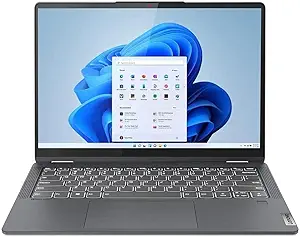
Overview of screenshot functionality
Taking a screenshot on a Lenovo laptop is a useful feature that allows you to capture important information or share interesting content with others. The process may vary slightly depending on the specific model and operating system, but the basic steps remain the same. Most Lenovo laptops offer multiple methods for taking screenshots. One common method is using the keyboard shortcut. By pressing the “PrtSc” or “Print Screen” key, you can capture the entire screen and save it to the clipboard. To save the screenshot as an image file, you can paste it into an image editing software or a document and then save it. Another method is using the “Snipping Tool” or “Snip & Sketch” application, which allows you to capture specific areas of the screen or annotate the screenshot before saving it. These built-in tools provide flexibility and convenience in capturing screenshots on your Lenovo laptop.
Importance of knowing how to take a screenshot
Knowing how to take a screenshot on your Lenovo laptop is essential for various reasons. It enables you to capture important information or error messages that can be helpful for troubleshooting or seeking technical support. Screenshot images can also be used as evidence or documentation in professional or academic settings. For example, if you need to include a visual representation of a website, software interface, or graphic design in a presentation or report, taking a screenshot allows you to do so easily. Furthermore, screenshots are invaluable for sharing interesting content or memorable moments with others, whether it’s a funny conversation, a stunning image, or a social media post. Being able to quickly and efficiently capture screenshots on your Lenovo laptop can enhance your productivity, communication, and overall user experience.
How to Screenshot on Lenovo Laptop Using the Print Screen Key

Locating the Print Screen key on a Lenovo laptop
Taking a screenshot on a Lenovo laptop is a simple process that can be done using the Print Screen key. To begin, you need to locate this key on your keyboard. On most Lenovo laptops, the Print Screen key is labeled as “PrtSc” or “PrtScn” and is typically located in the upper-right corner of the keyboard, near the function keys. It may be combined with other keys, such as “Fn” or “Ctrl”. Look for a key that has “PrtSc” or “PrtScn” written on it or an icon that resembles a camera or a screen.
Steps to capture a screenshot using the Print Screen key
Once you have located the Print Screen key on your Lenovo laptop, capturing a screenshot is a breeze. Follow these steps:1. Open the screen or application that you want to capture.2. Press the Print Screen key (sometimes combined with the “Fn” or “Ctrl” key) on your keyboard. This will capture the entire screen.3. Open an image editing program, such as Paint or Photoshop.4. Paste the screenshot into the program by pressing “Ctrl + V” or selecting the “Paste” option from the menu.5. Edit or crop the screenshot if desired.6. Save the screenshot to your desired location on your laptop.
By following these simple steps, you can easily capture and save screenshots on your Lenovo laptop.
Using the Windows Snipping Tool
Introduction to the Windows Snipping Tool
Taking screenshots on a Lenovo laptop is a simple task with the help of the Windows Snipping Tool. This built-in feature allows users to capture specific areas of the screen or the entire screen, providing a convenient way to save and share information. The Snipping Tool offers various options for capturing screenshots, including rectangular, free-form, window, or full-screen snips. It also provides basic editing tools to annotate and highlight the captured images.
Step-by-step guide on using the Snipping Tool to take a screenshot
1. Launch the Snipping Tool by typing “Snipping Tool” in the Windows search bar and selecting the app from the results.2. Click on “New” to start a new snip.3. Choose the desired snip type from the options: rectangular, free-form, window, or full-screen.4. Position the cursor on the screen and click and drag to select the area you want to capture.5. Release the mouse button to capture the selected area.6. Use the editing tools to annotate or highlight the screenshot if needed.7. Save the screenshot by clicking on “File” and selecting “Save As.”8. Choose the desired location on your Lenovo laptop to save the screenshot and give it a suitable name.9. Click “Save” to save the screenshot to your desired location.
Using the Lenovo Vantage software to Screenshot on Lenovo Laptop

Overview of Lenovo Vantage software
Lenovo Vantage is a powerful software that comes pre-installed on Lenovo laptops, including the Lenovo Yoga 720-12IKB. It offers a range of features to enhance the user experience, including system updates, device diagnostics, and personalized settings. With Lenovo Vantage, you can easily customize your laptop’s settings, such as power management and audio preferences. It also provides access to support resources and user guides for troubleshooting. One of the key features of Lenovo Vantage is its screenshot functionality, allowing users to capture their screen effortlessly.
Steps to capture a screenshot using Lenovo Vantage
To take a screenshot on your Lenovo laptop using Lenovo Vantage, follow these simple steps:1. Launch the Lenovo Vantage software by clicking on the Start menu and searching for “Lenovo Vantage.”2. Once the software opens, navigate to the “Hardware Settings” tab.3. In the left sidebar, click on “Screen Capture.”4. A screen capture toolbar will appear at the top of your screen.5. Click on the camera icon to capture a full-screen screenshot.6. To capture a specific area, click on the “Crop” button and select the desired portion of the screen.7. After capturing the screenshot, it will be saved in the default location specified by Lenovo Vantage.
Taking a screenshot of a specific window
Introduction to capturing a specific window
Taking a screenshot on a Lenovo laptop is a simple and useful skill to have. Whether you want to save important information, capture an error message, or share something interesting with others, knowing how to take a screenshot can be incredibly handy. In this guide, we will focus on capturing a specific window on your Lenovo laptop. This method allows you to screenshot a single window instead of the entire screen, ensuring that you only capture the desired content. By following the step-by-step instructions below, you’ll be able to take screenshots of specific windows effortlessly and efficiently.
Step-by-step guide on taking a screenshot of a specific window on a Lenovo laptop
1. Identify the window you want to capture. Make sure it is the active window on your laptop screen.2. Locate the “Print Screen” key on your Lenovo laptop’s keyboard. It is typically labeled as “PrtSc” or “PrntScrn” and is usually found in the upper-right section.3. Press the “Alt” key on your keyboard and simultaneously press the “Print Screen” key. This combination captures only the active window.4. Open your preferred image editing software or a simple paint program like Microsoft Paint.5. Paste the captured screenshot by pressing “Ctrl” + “V” or selecting “Paste” from the software’s menu.6. Edit or crop the screenshot if desired. You can use the software’s tools to highlight specific areas or add annotations.7. Finally, save the edited screenshot to your desired location on the laptop by clicking “File” and selecting “Save As.”By following these user-friendly steps, you can easily capture specific windows on your Lenovo laptop and save them for future reference or sharing with others.
How to Screenshot on Lenovo Laptop: Saving and Sharing Your Screenshots

Saving screenshots to your laptop
Taking screenshots on a Lenovo laptop is a simple process that can be done with just a few clicks. Once you have captured the desired screen image, you may want to save it for later use or reference. To save a screenshot on your Lenovo laptop, follow these steps:1. Press the “Print Screen” key (often labeled as “PrtScn” or “PrtSc”) on your keyboard. This will capture the entire screen.2. Open a photo editing or image viewing software, such as Windows Paint or the pre-installed Lenovo Screen Snipping tool.3. Paste the screenshot into the software by pressing “Ctrl” + “V” or selecting the “Paste” option from the menu.4. Edit the screenshot if desired, by cropping or adding annotations.5. Finally, click on “File” and select “Save As” to save the screenshot to your preferred location on your Lenovo laptop.
Sharing screenshots using various methods (email, social media, etc.)
Once you have successfully taken and saved a screenshot on your Lenovo laptop, you may want to share it with others. Fortunately, there are multiple ways to share your screenshots, depending on your preferences and requirements:1. Email: Attach the saved screenshot to an email and send it to the intended recipient. This method is suitable for sharing screenshots with colleagues, friends, or family.2. Social media: If you wish to share your screenshots on social media platforms such as Facebook, Twitter, or Instagram, navigate to the respective platform and follow the instructions to upload the image.3. Cloud storage: Uploading your screenshots to cloud storage services like Google Drive, Dropbox, or OneDrive allows you to share a link to the image, making it accessible to others.4. Instant messaging: Many instant messaging apps, such as WhatsApp or Slack, allow you to share images directly from your laptop. Open the desired chat or channel, click on the attachment icon, and select the saved screenshot.
Remember to consider the privacy implications when sharing screenshots, especially if they contain sensitive information.
