


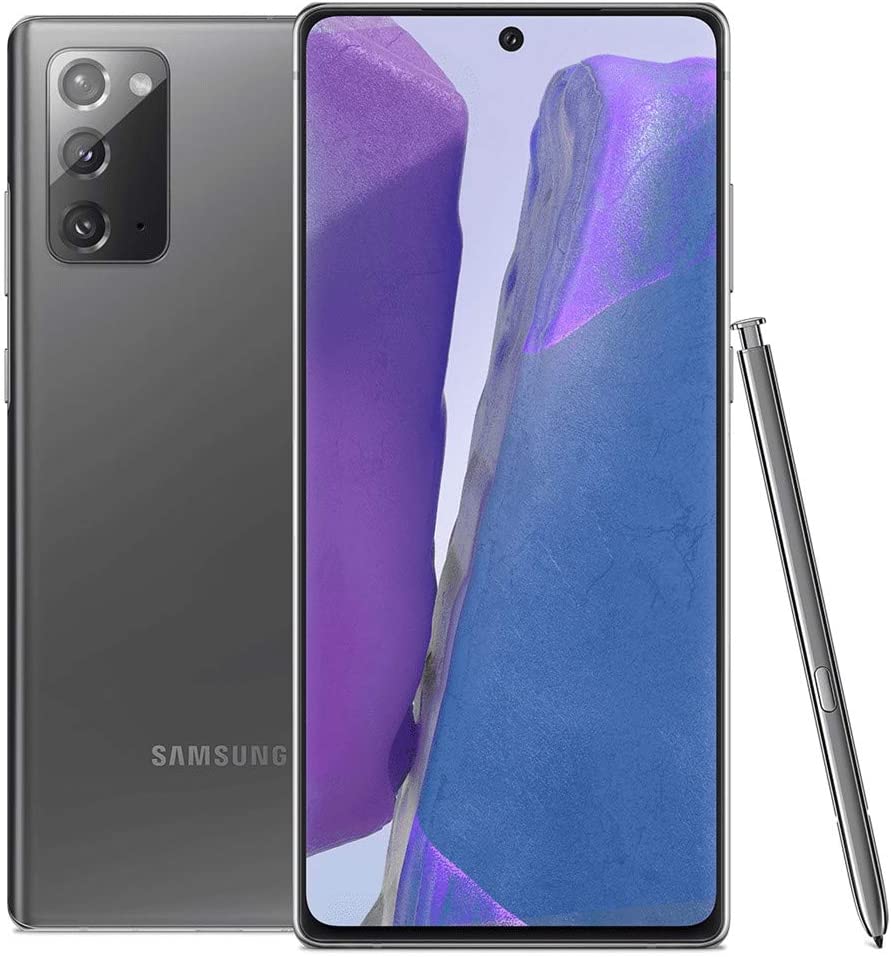
Introduction to the S Pen
What is the S Pen?
The S Pen is a unique feature of the Samsung Galaxy Note 20 that sets it apart from other smartphones. It is a stylus pen that is designed to help you interact with your phone in new ways. The S Pen has pressure sensitivity, allowing for precise control when drawing or taking notes. It also has Bluetooth connectivity, enabling you to use it as a remote control for your phone’s camera or other apps. The S Pen can be used for a variety of tasks, from taking notes to sketching and even playing games.
Benefits of using the S Pen on the Samsung Galaxy Note 20
There are several benefits to using the S Pen on the Samsung Galaxy Note 20. One of the most significant advantages is its precision. The S Pen allows you to draw or write with accuracy, making it perfect for taking notes or creating artwork. Additionally, the S Pen’s Bluetooth functionality allows for remote control of your phone’s camera or other apps, making it a versatile tool for any situation. The S Pen can also be used for handwriting recognition and translation, making it ideal for business or travel. With the S Pen, you can take your productivity and creativity to the next level.
Basic S Pen Functions: Tips and Tricks for Using the S Pen on Samsung Galaxy Note 20
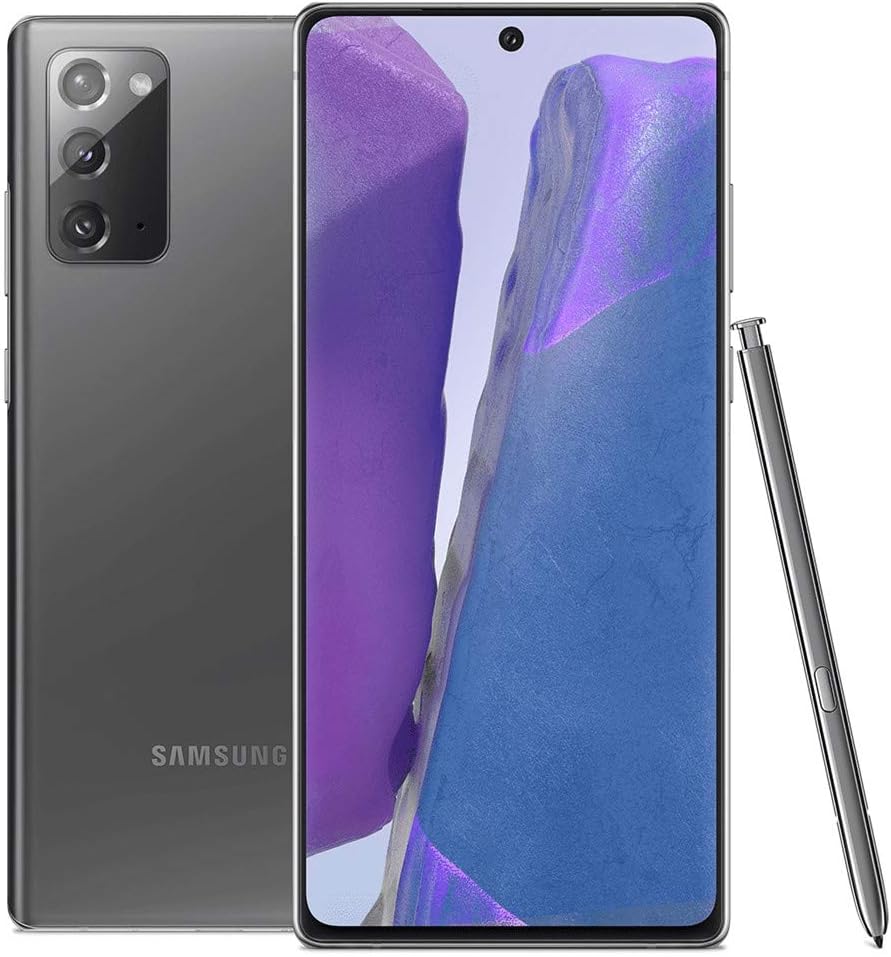
Writing and Drawing with the S Pen
The S Pen on Samsung Galaxy Note 20 is perfect for writing and drawing with precision. With its highly responsive tip and pressure sensitivity, you can take notes, create sketches, and doodle with ease. The Samsung Notes app is a great tool to use with the S Pen, allowing you to draw or write on the screen and save your notes for later use. You can also use the S Pen with other apps such as Adobe Photoshop or Procreate for more advanced drawing and editing.
To make the most of the S Pen, try experimenting with different brushes and colors to create unique designs. You can also adjust the pressure sensitivity to suit your needs. Another useful feature of the S Pen is the ability to capture a screenshot and annotate it with notes or drawings.
Using the S Pen for Navigation
The S Pen on Samsung Galaxy Note 20 can also be used for navigation. You can use the S Pen to scroll through web pages, zoom in and out of photos, and even control your phone remotely. To activate this feature, simply open the Air Actions menu and select the gesture you want to use.
Another handy feature of the S Pen is the ability to create shortcuts for your favorite apps or actions. You can customize the S Pen button to open a specific app or perform a specific action when pressed. This can save you time and make navigating your phone even easier.
Overall, the S Pen on Samsung Galaxy Note 20 is a versatile tool that can be used for both creative and practical purposes. With its advanced features and responsive tip, it’s a must-have for anyone looking to take their phone experience to the next level.
Advanced S Pen Features
Air Actions and Gestures
The Samsung Galaxy Note 20 comes with the S Pen, which has air actions and gestures that allow for hands-free control of some functions on the phone. To activate the air actions, hold down the button on the S Pen and move it in a particular direction. For example, moving the S Pen clockwise in a circle can answer or decline phone calls, and moving it up and down can adjust the volume. The gestures, on the other hand, involve holding down the button and making a specific shape or movement with the S Pen. For instance, drawing a “V” with the S Pen can activate the camera, while drawing an “L” can bring up the notes app. These air actions and gestures can save time and make it easier to navigate the phone.
S Pen Remote Control
The S Pen on Samsung Galaxy Note 20 can also be used as a remote control for various functions on the phone. To activate this feature, go to “Settings” and then “Advanced Features,” and select “S Pen.” From there, choose “S Pen Remote” and follow the prompts to set up the remote control. Once set up, the S Pen can be used to control music playback, take photos, and even navigate the phone’s interface. Additionally, the S Pen can be customized to perform specific functions based on the user’s preferences. For instance, a double-tap on the button can launch a specific app, or a long press can activate the phone’s voice assistant. With the S Pen remote control, users can enjoy a more seamless and convenient phone experience.
Customizing the S Pen: Tips and Tricks for Using the S Pen on Samsung Galaxy Note 20
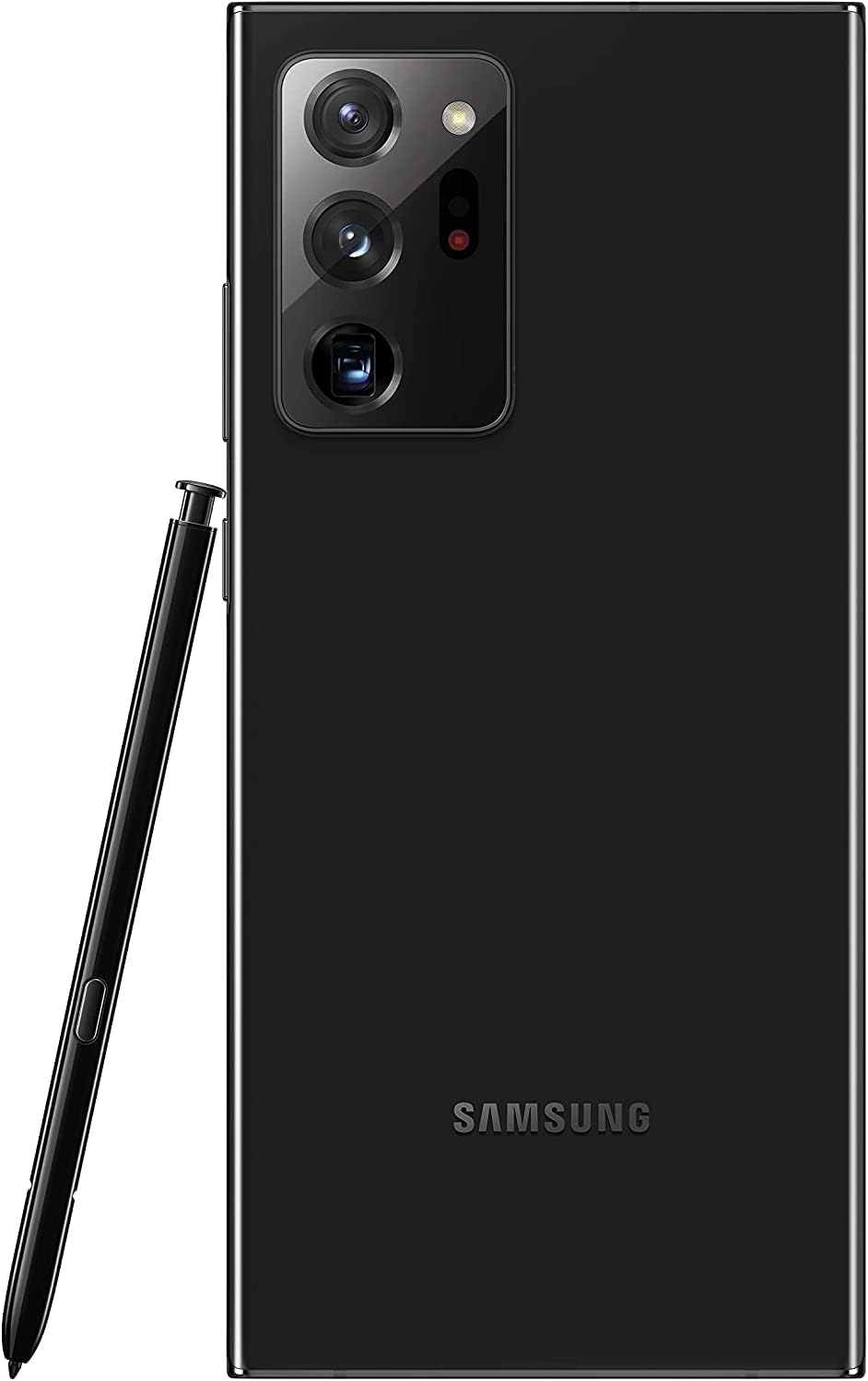
Changing S Pen Settings
The S Pen on Samsung Galaxy Note 20 is a powerful tool that can greatly enhance your productivity and creativity. However, to get the most out of it, you need to customize its settings to suit your needs. One of the first things you should do is adjust the pressure sensitivity of the pen. This will allow you to control the thickness and opacity of your strokes, making it easier to create precise drawings and sketches. You can also change the color and size of the pen tip, as well as its hover and click actions. Additionally, you can enable features like Air Actions, which allow you to control your phone with hand gestures, and Screen Off Memo, which lets you take notes without unlocking your device.
Creating Custom S Pen Shortcuts
While the S Pen on Samsung Galaxy Note 20 comes with a variety of built-in features and shortcuts, you can also create your own custom shortcuts to make it even more useful. For example, you can assign specific apps or actions to the S Pen button, such as launching the camera or taking a screenshot. You can also create custom Air Actions, which allow you to perform tasks like playing music or adjusting the volume by waving your hand in front of the screen. Additionally, you can use the S Pen to create shortcuts for frequently used phrases or symbols, such as your email address or a copyright symbol. By taking advantage of these customizations, you can make the S Pen on your Samsung Galaxy Note 20 even more powerful and efficient.
S Pen Tips for Productivity
Taking Notes with the S Pen
The S Pen is one of the most remarkable features of Samsung Galaxy Note 20. It’s a powerful tool that can help you take notes with precision and ease. One of the best things about the S Pen is that you can take notes even when the screen is off. To do this, simply remove the S Pen from its holder, and the Note 20 will automatically launch the Screen off memo feature. You can start writing your notes right away, and the Note 20 will save them automatically.
Another great feature of the S Pen is the ability to convert your handwriting into digital text. Simply write out your notes, and then tap on the text conversion icon. The Note 20 will do the rest, and you’ll have a digital version of your notes that you can edit and share.
Using the S Pen for Creative Projects
The S Pen isn’t just for taking notes; it’s also a powerful tool for creative projects. One of the best uses of the S Pen is for drawing and sketching. The Note 20 has a built-in drawing app called PENUP, which allows you to create amazing works of art using the S Pen. You can choose from a variety of brushes and colors to create your masterpiece.
Another great way to use the S Pen is for editing photos. The Note 20 has a powerful photo editor built-in, and you can use the S Pen to make precise adjustments to your photos. For example, you can use the S Pen to remove blemishes or to add text to your photos.
Troubleshooting S Pen Issues: Tips and Tricks for Using the S Pen on Samsung Galaxy Note 20
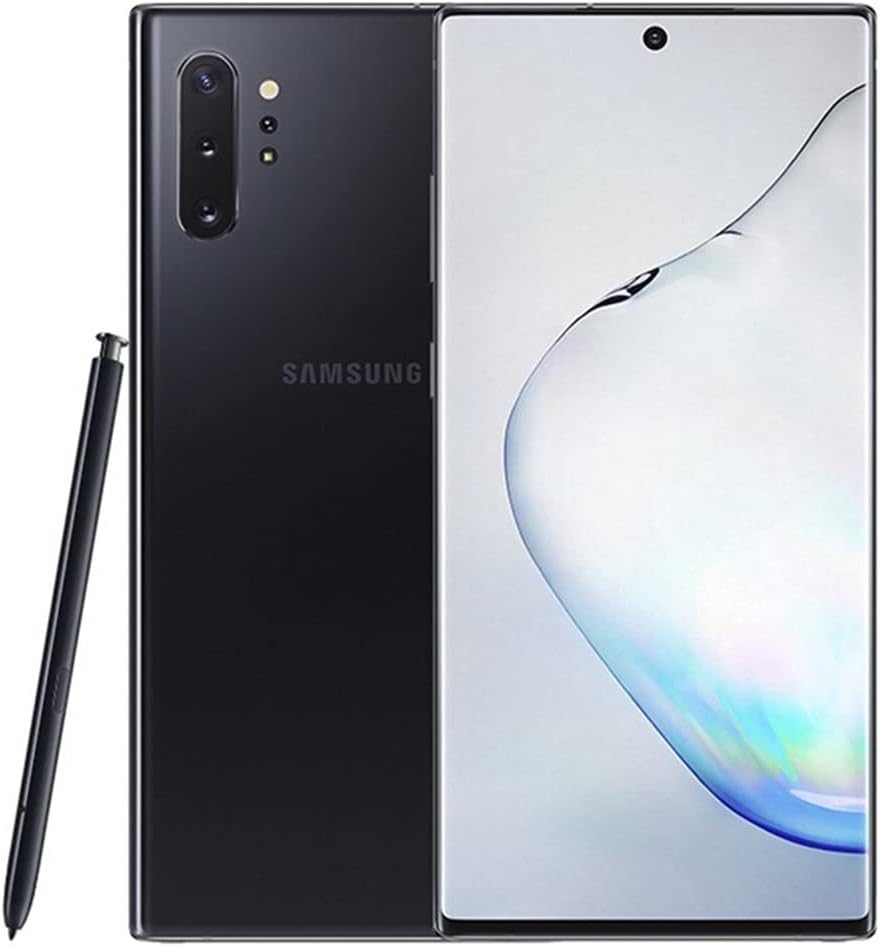
Common S Pen Problems and Solutions
One common problem that users face with the S Pen is that it stops working or disconnects from the phone. This can happen due to a low battery or an issue with the Bluetooth connection. To fix this, try replacing the battery or resetting the Bluetooth connection by removing the S Pen from the phone’s settings and then pairing it again. Another common issue is the S Pen tip breaking or wearing out over time. In this case, simply replace the tip with a new one.
Contacting Samsung Support for S Pen Assistance
If you’re experiencing more significant issues with your S Pen, such as it not being recognized by the phone or not working properly, you may need to contact Samsung support for assistance. You can do this by visiting their website and submitting a support request or reaching out to their customer service team through their hotline. They may be able to troubleshoot the issue remotely or advise you to take the device to a repair center. It’s important to have your device’s IMEI number and purchase information ready when contacting support for faster assistance.
